Design a full app in Claude, the easy way.
Five steps, five prompts and one checklist. Most people open Claude and type “design me an app”. That is step 5. Do these in order and Claude stops guessing.

 Learn this with us in UpscalePosted byZee @zeeuiuxApps & UI
What is the easiest way to design an app in Claude?
Don't start with "design me an app". Write the brief, map the screens as grey wireframes, try three looks and lock one, turn that look into a design system, and only then ask Claude for the screens. Done in that order, Claude stops guessing.
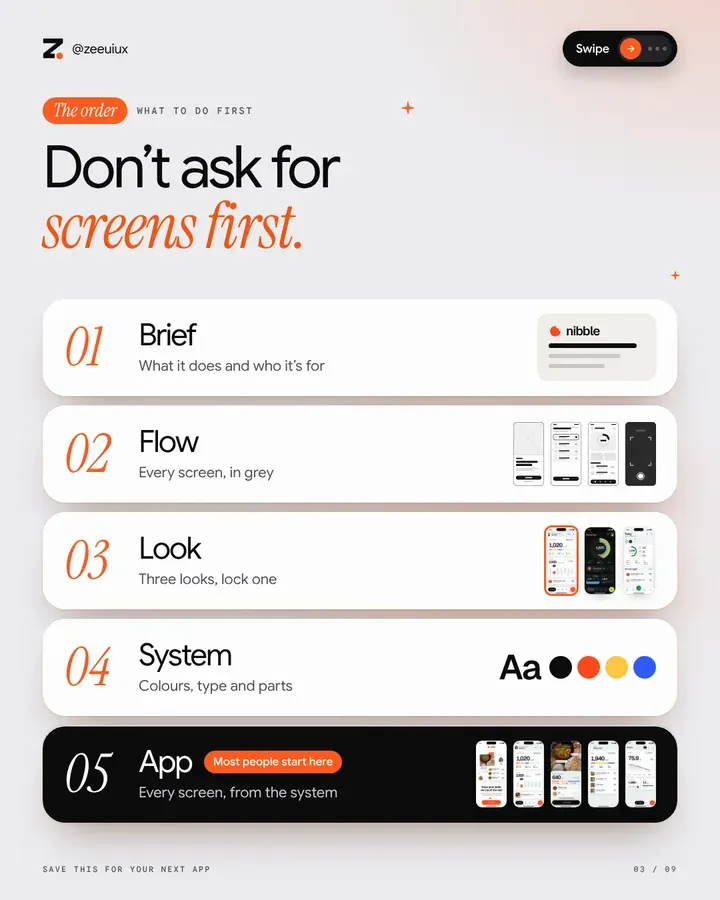 Slide 03 of 9
How to use this.
- 01.Use one chat for steps 1 to 4, and a new chat for step 5.
- 02.Copy each prompt, fill in the brackets, and answer what Claude asks.
- 03.Don’t move to the next step until its check passes.
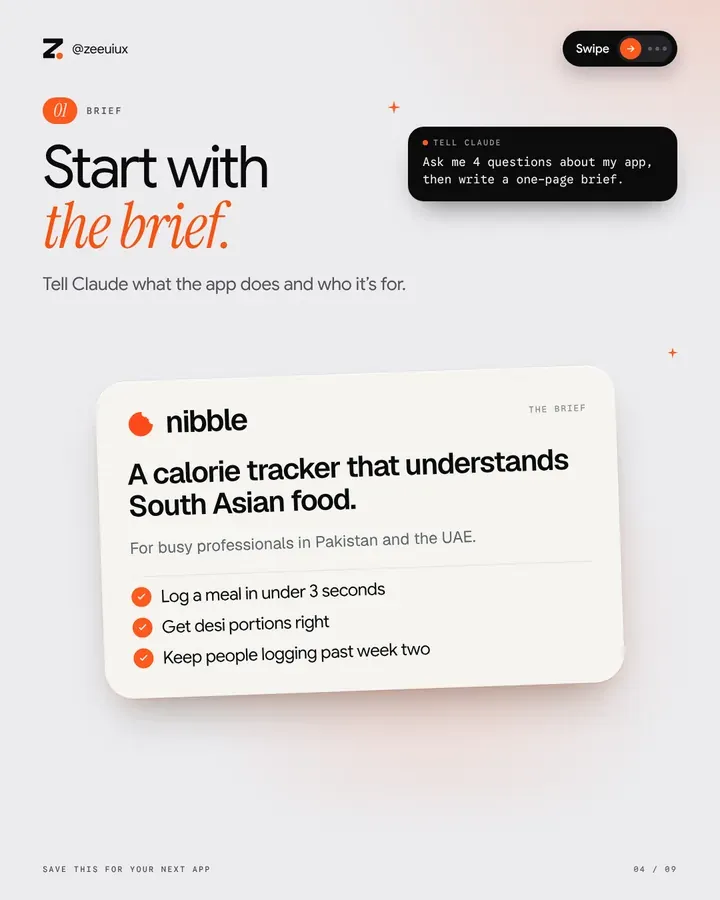 Slide 04 of 9
Start with the brief.
Tell Claude what the app does and who it’s for. If you have a client, paste their message in word for word.
I want to design a mobile app with you, one stage at a time.
App name: name
What it does: one sentence
Who it's for: age, place, situation
Client message or notes: paste here, or write "my own app"
Before anything else, ask me up to 4 short questions about what is missing.
Then write a one-page brief: a one-line summary, the audience, the problem, 3 goals I can measure, the must-haves for version 1, what can wait, and 3 tone words.
Do not design anything yet.
- 1You can say the app in one line
- 2The three goals can be measured
- 3The version 1 list is short
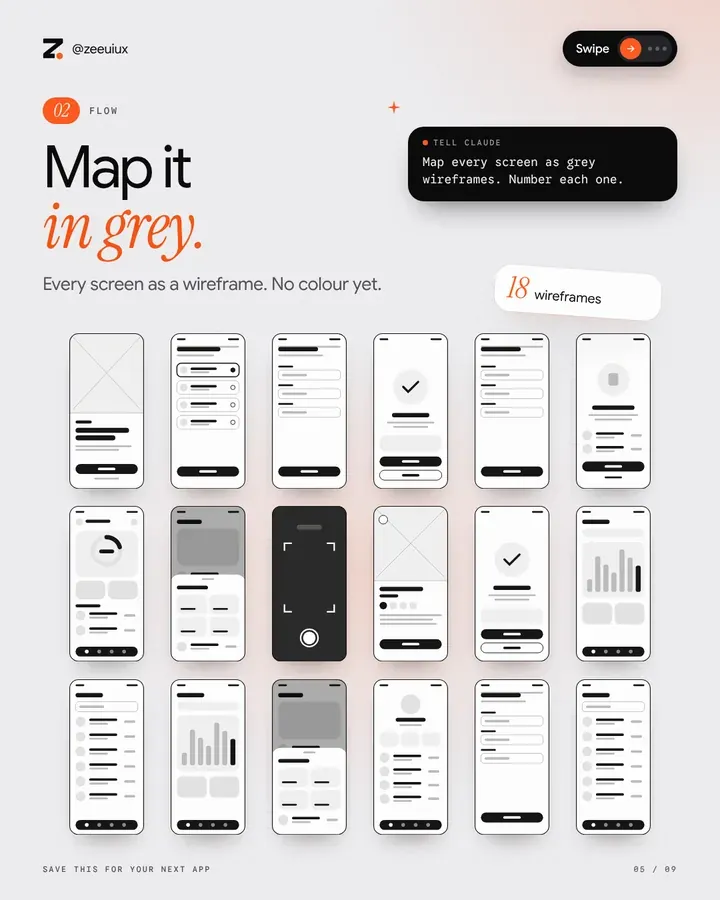 Slide 05 of 9
Map it in grey.
Every screen as a wireframe, in the order people meet it. With no colour on the page, the only question is what goes where.
Using the brief, map every screen of the app as wireframes.
Greys and black only. No colour and no real images.
Group them like this: the first-open screens (3 to 7), the home screen, then one column of screens for each tab.
Give every screen a number (S01, S02 and so on), a name and its one job.
Rules: show the value before sign-up. Ask for permissions last, with a reason. One job per screen. Quick actions open as sheets. Every path ends somewhere.
Finish with the 3 to 5 decisions you made, in plain words.
- 1People see the value before sign-up
- 2Every screen has one job
- 3No screen is a dead end
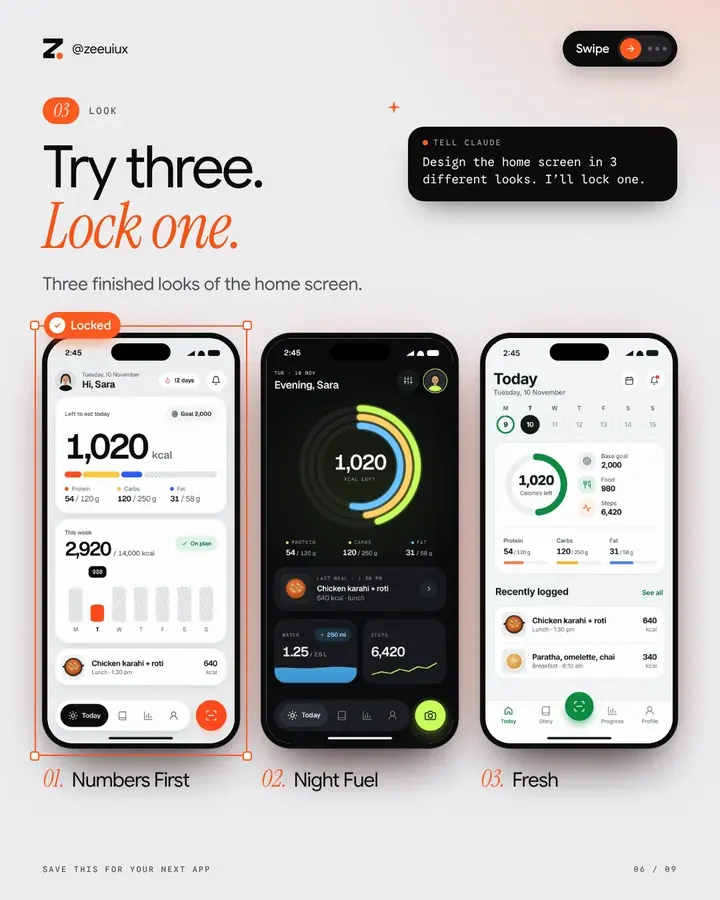 Slide 06 of 9
Try three. Lock one.
See the same two screens in three finished looks before you commit. You can also mix two of them.
Now design the home screen and the one key screen of this app in three finished looks.
Make the three differ in structure, not only colour: the hero, the main chart, the tab bar, the card style, the corner size and the type.
Looks 1 and 2 can be bold. Look 3 is what the best apps in this category already do, done properly.
For each look, list its colours, fonts, corner size, 3 things it always does and 3 things it never does.
Use real content from the brief. No lorem ipsum.
Then ask me which look to lock. I may mix two.
- 1The looks differ in layout, not only colour
- 2Your pick fits the tone words in the brief
- 3You told Claude which one is locked
 Slide 07 of 9
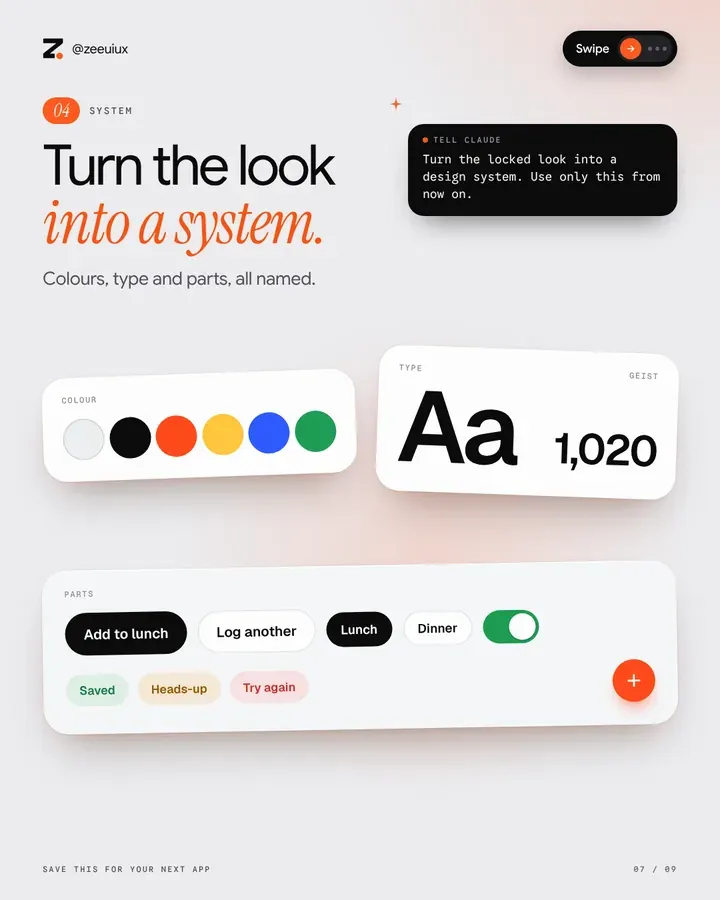
Turn the look into a system.
Name every colour, size and part once. After this, Claude builds every screen from the same pieces, so nothing drifts.
Lock look name. Turn it into a design system:
- colour tokens, each with a name, a job and a contrast check
- a type scale with size, line height and weight
- spacing on a 4pt grid, corner sizes and shadows
- one icon set
- every part in every state: buttons, fields, chips, toggles and messages (default, pressed, disabled, error)
From now on, build only from this system. If you need something it does not have, add it to the system first and tell me.
- 1Text passes its contrast check
- 2Every part has its states
- 3There is one icon set
 Slide 08 of 9
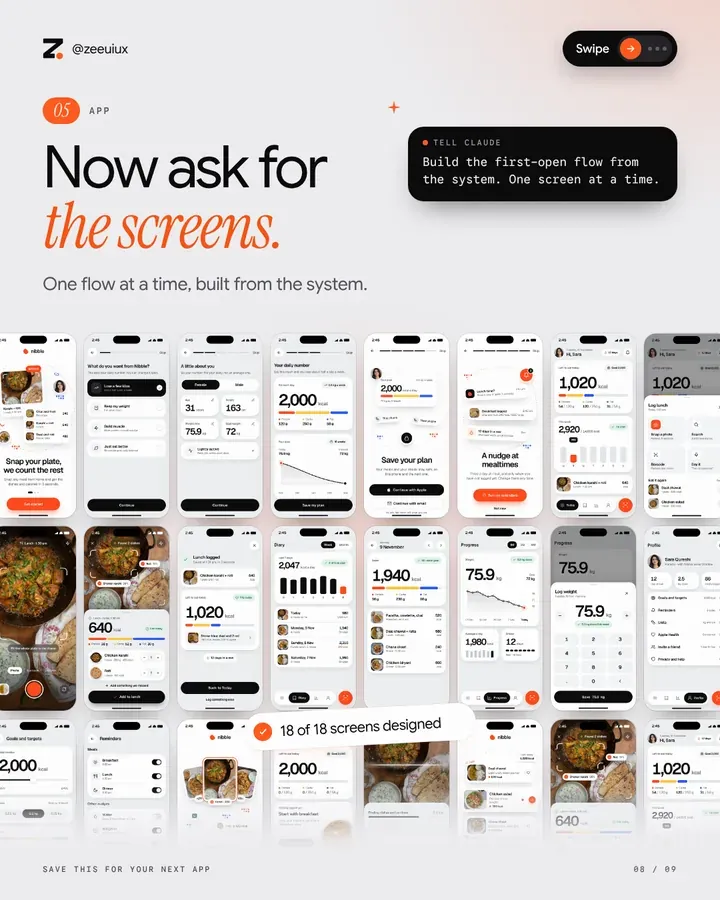
Now ask for the screens.
Start a new chat and give Claude the brief, the flow and the system. Build one flow at a time and review each before the next.
New chat. Attach or paste the brief, the flow and the design system.
Build this app screen by screen from the design system. Change nothing in the system.
Start with the first-open flow. Do one flow at a time and stop after each so I can review it. Then the home screen, then each tab.
Every screen has one job, one main button and real content. Add the empty, loading and error states where they apply.
When every flow is done, link the screens into one clickable prototype.
- 1Every screen uses only the system
- 2One main button per screen
- 3Empty, loading and error states are done
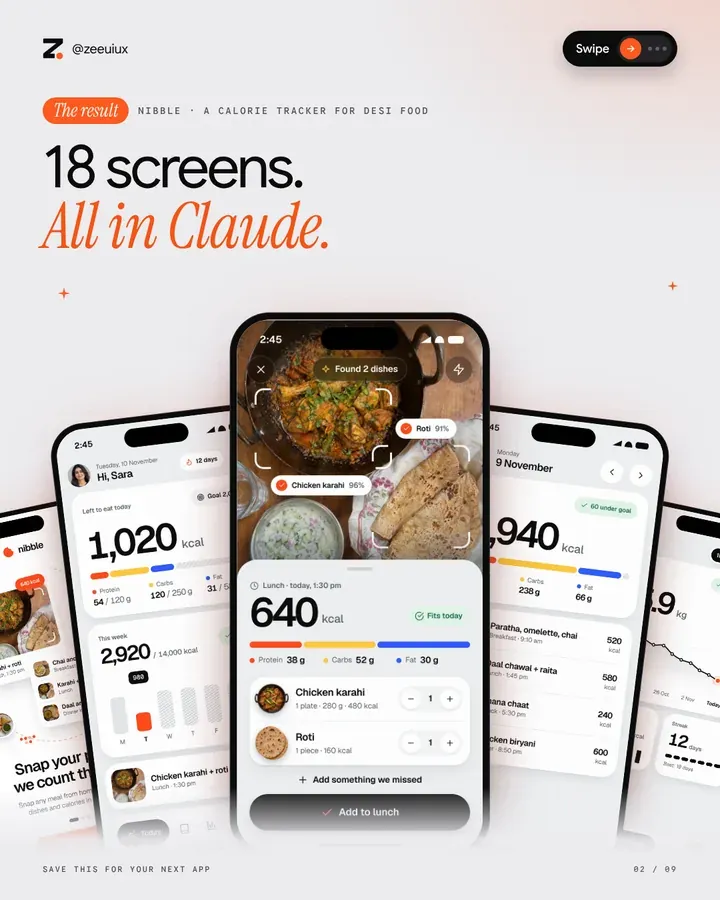 Slide 02 of 9
The checklist.
- The brief fits on one page and has three goals you can measure
- Every screen in the flow has a number and one job
- You saw three looks and locked one
- Colours, type, spacing and parts all have names
- Text passes contrast on every screen
- Every button, field and toggle has its states
- Each flow was reviewed before the next one started
- The screens are linked into one clickable prototype
Learn AI with us, every day.
Upscale is the AI Creative Club on Skool, hosted by Zee and Bilal. This guide is one lesson. The club is where we keep going.
- Daily video tutorials
- New AI tools tested every week
- A room of creatives sharing wins, work and new finds

Take it with you.
The files for this guide. Free.
More free guides
Newest first50 Claude animations. Free (3D included)
One prompt for each. 20 are in 3D.Open the guide 1/50Video & reels
How we made a 3D logo reveal with AI.
A real brand video. 10 steps and 10 prompts.Open the guide 1/10Video & reels
How we made a $1,200 video with AI.
A real client video. 9 steps and 10 prompts.Open the guide 1/23